| Bookmark Name | Actions |
|---|
System Configurations
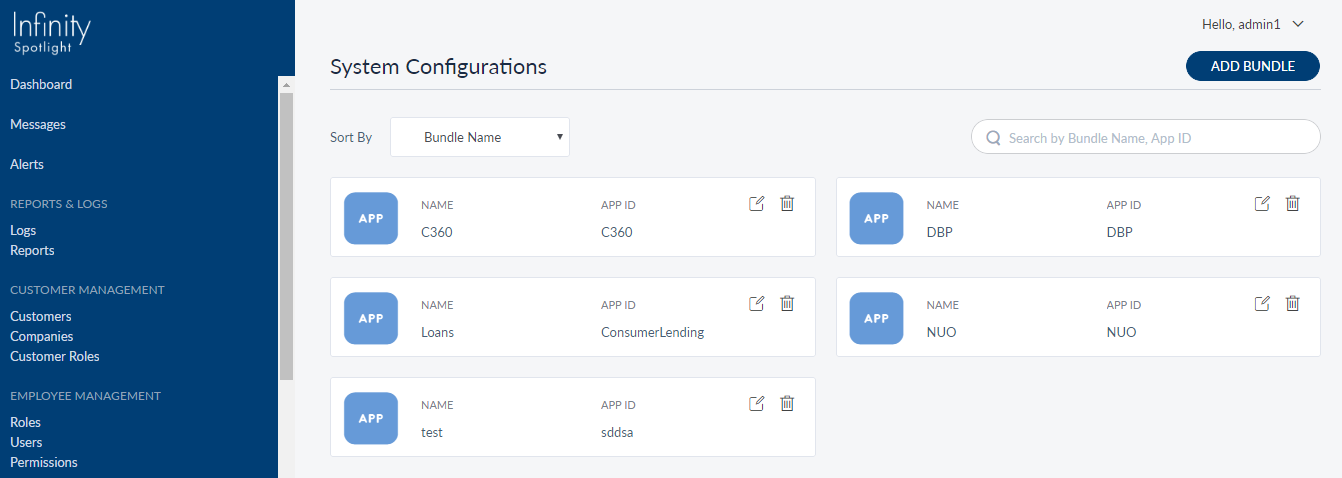
A configuration set is always defined within a bundle. Use this feature to manage configurations such as preference, image, and skin within a bundle. As an administrator or a business owner, you can create and manage configuration bundles and corresponding configuration keys.
Menu path: Configurations > System Configurations
The app displays the list of configuration sets (bundle) that have already been added. This is also the main page of the System Configurations module.
You can do the following:
- View the list of configuration bundles that have already been added.
- Click Add Bundle to add a configuration bundle and configuration keys.
- Search for a specific bundle by name or App ID.
- Sort the bundles by name or App ID.
- Click any bundle to view the details and the associated configuration keys.
- Click Edit
 to edit the bundle details and the associated configuration keys.
 - Click Delete
 to delete the bundle. The associated configuration keys will also be deleted.
 - Add configuration keys to an existing bundle.
- Manage the configuration keys (edit, delete) within a bundle.
Add Bundle and Configuration Keys
Use the feature to add a bundle and corresponding configurations. Click Add Bundle from the main page of the System Configurations module.
Menu path: Configurations > System Configurations > Add Bundle
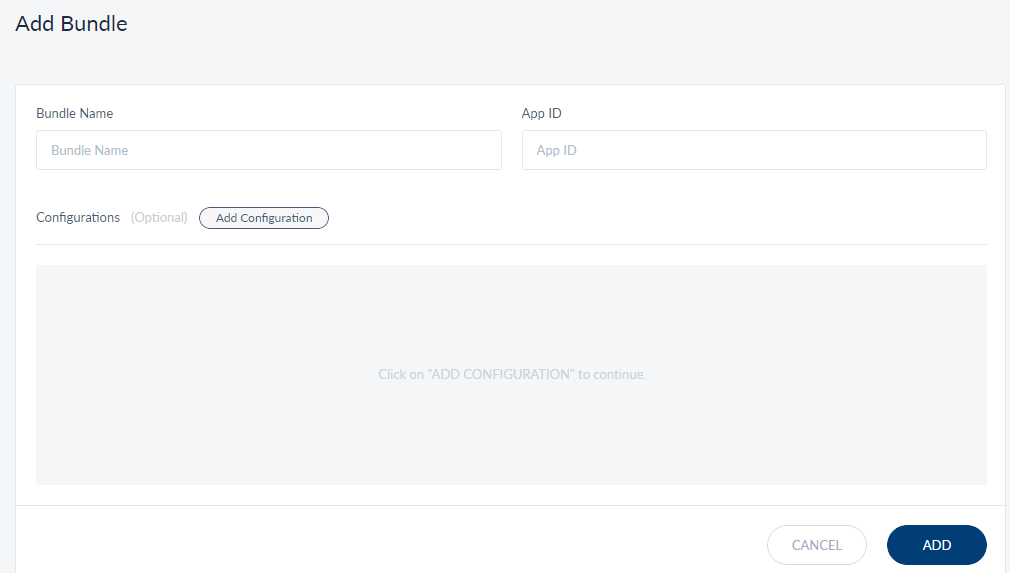
On the Add Configuration Bundle screen, do the following:
- Enter the Bundle Name. It is mandatory and the bundle name should be unique. The app displays an appropriate message if the bundle name is duplicated.
- Enter the App ID. It is mandatory.
NOTE:
- You can either save the bundle directly or add configuration keys, and then save the bundle.
- The app displays the list of configurations that have already been added with the following details: Key, Value, Type, and Target. This is applicable if you want to add a configuration key to an existing bundle.
- You can search for a key-value using the search panel.
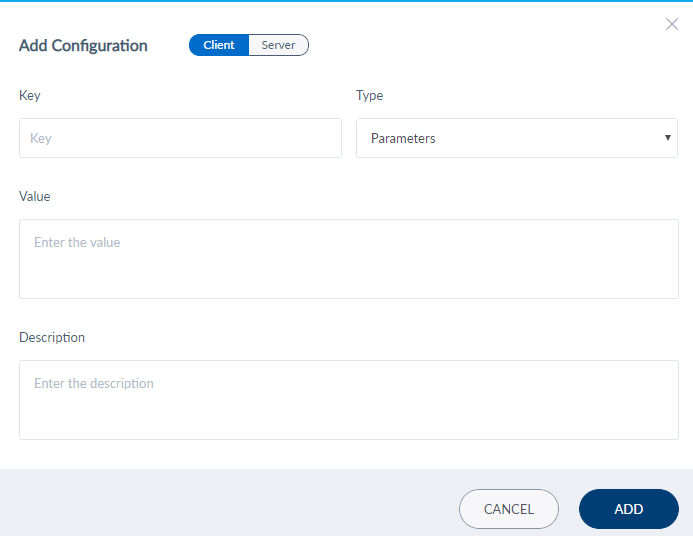
- Do the following if you want to add the configuration key details:
- Click Add Configuration. The app displays the Add Configuration screen.
- Select the type of target from Client or Server.
- Enter the Key and its corresponding Value details in the respective fields. It is mandatory.
- Select the type of configuration from the Type list. The options are: Preference, Image/Icon, Skin.
- Enter the Description of the configuration. It is mandatory.
- Click Add. The configuration is added to the configurations list with the following details: Key, Value, Type, and Target.
- Click Add. The bundle is added the Configuration Bundle list.
View Bundle and Configuration Details
Use the feature to view the details of the bundle and associated configuration key details, and edit the details if required.
Menu path: Configurations > System Configurations > Click a bundle from the list
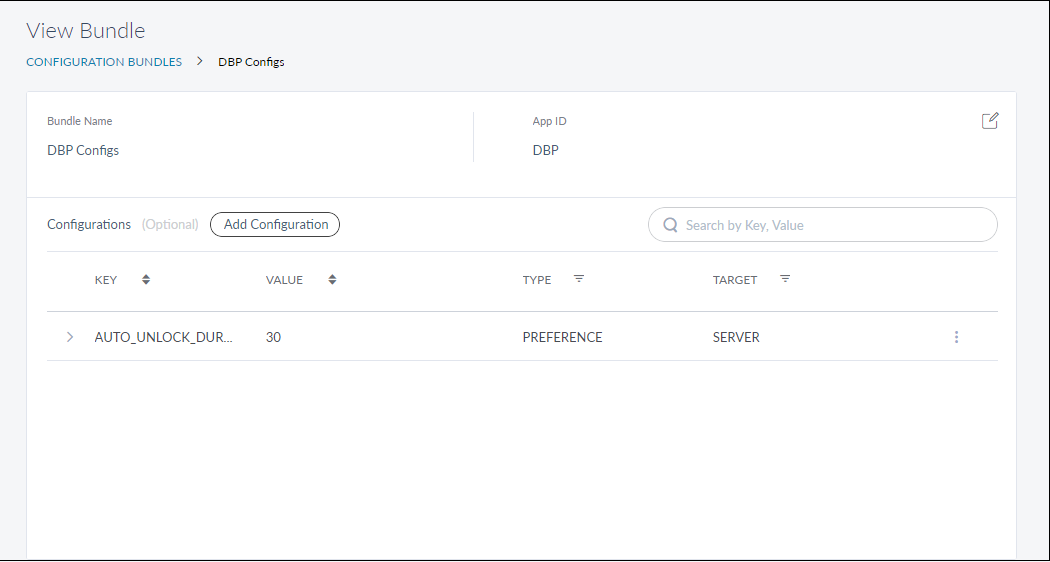
The app displays the following:
- Bundle Name and App ID with a provision to edit the details. Click Edit to modify the details.
- List of configurations that have already been added with the following details: Key, Value, Type, and Target.
- Sort the list using the sort
 icon (
 denotes sorted by that column)
 - Filter the list items by configuration Type or Target using the filter
 icon.
icon.
- Sort the list using the sort
- On the contextual
 menu, click Edit to make the changes to the configuration as required.
 - On the contextual menu, click Delete to remove the configuration.
Configuration Keys
By default, Spotlight contains the configuration keys related to the following bundles. Each bundle represents its respective client application. The configuration keys represent various options available in the client app and any changes made to the value of a configuration key will have an impact on the respective field in the client app or server.
-
 Spotlight
Key Type Target CONCURRENT_ACTIVE_OUTAGE_MESSAGES Parameters Server -
DBP
Key Type Target AUTO_UNLOCK_DURATION Parameters Server -
New User Onboarding (NUO)
Key Type Target ACCOUNT_TYPE Parameters CLIENT AUTO_FUNDING_AMOUNT Parameters SERVER CHALLENGE_QUESTION Parameters CLIENT CONFIGURABLE_FLOW Parameters SERVER COUNTRY_CODE Parameters CLIENT CURRENCY_FORMAT_DECIMALS Parameters CLIENT CURRENCY_FORMAT_THOUSANDS Parameters CLIENT DATA_VALIDATION_NUO Parameters CLIENT DATE_FORMAT Parameters CLIENT DEFAULT_ACC_TYPE Parameters SERVER DEFAULT_PRODUCT Parameters CLIENT ESIGN_AGREEMENT_URL Parameters CLIENT FUNDING_AMOUNT Parameters CLIENT GOOGLE_MAP Parameters CLIENT HOME_ADDRESS Parameters CLIENT HOME_ADDRESS_SEQUENCE Parameters CLIENT IDENTITY_TYPE Parameters CLIENT IDLE_TIMEOUT Parameters CLIENT IS_CREDIT_UNION Parameters CLIENT LAST_REJECTION_DATE Parameters SERVER MINOR_AGE Parameters CLIENT OFAC Parameters CLIENT OTPModulePresent Parameters CLIENT OTP_ResendLimit Parameters CLIENT PRODUCT_SELECTION Parameters CLIENT -
Loans
Key Type Target VEHICLE_DEFAULT_LOAN_AMOUNT Parameters CLIENT PERSONAL_LOANTERMS_MAX Parameters CLIENT PERSONAL_LOANTERMS_MIN Parameters CLIENT VEHICLE_DEFAULT_LOAN_TERMS_STEP Parameters CLIENT VEHICLE_DEFAULT_LOAN_TERMS Parameters CLIENT VEHICLE_LOAN_AMOUNT_STEP Parameters CLIENT PERSONAL_LOAN_AMOUNT_STEP Parameters CLIENT PERSONAL_DEFAULT_LOAN_AMOUNT Parameters CLIENT PERSONAL_DEFAULT_LOAN_TERMS Parameters CLIENT PERSONAL_LOAN_MIN_AMOUNT Parameters CLIENT PERSONAL_DEFAULT_LOAN_TERMS_STEP Parameters CLIENT LINK_EXPIRY_TIME Parameters SERVER CREDIT_CARD_FORM_SEQUENCE_CONFIG Parameters CLIENT CREDIT_CARD_DEPENDENT_FORM_SEQUENCE_CONFIG Parameters CLIENT CREDIT_CARD_FORM_SECTION_CONFIG Parameters CLIENT VEHICLE_APPLICATION_FORM_SEQUENCE_CONFIG Parameters CLIENT VEHICLE_APPLICATION_FORM_SECTION_CONFIG Parameters CLIENT VEHICLE_APPLICATION_DEPENDENT_FORM_SEQUENCE_CONFIG Parameters CLIENT PERSONAL_APPLICATION_FORM_SEQUENCE_CONFIG Parameters CLIENT PERSONAL_APPLICATION_FORM_SECTION_CONFIG Parameters CLIENT VEHICAL TYPES Parameters CLIENT PERSONAL_APPLICATION_DEPENDENT_FORM_SEQUENCE_CONFIG Parameters CLIENT CREDIT_CARD_MAX_LIMIT Parameters CLIENT CREDIT_CARD_LIMIT_STEP Parameters CLIENT CREDIT_CARD_LIMIT_DEFAULT Parameters CLIENT MORTGAGE_MAX_PROPERTY_VALUE Parameters CLIENT MORTGAGE_MAX_MORTGAGE_BALANCE Parameters CLIENT MORTGAGE_MAX_ESTIMATED_LOAN Parameters CLIENT MORTGAGE_MIN_PROPERTY_VALUE Parameters CLIENT MORTGAGE_MIN_ESTIMATED_LOAN Parameters CLIENT MAKE YEAR Parameters CLIENT MORTGAGE_CONSENT_GENERAL Parameters CLIENT MORTGAGE_CONSENT_GENERAL1 Parameters CLIENT PREF_LOANTYPE_APR_ALL Parameters CLIENT VEHICLE_MAX_LOAN_AMOUNT Parameters CLIENT VEHICLE_MIN_LOAN_AMOUNT Parameters CLIENT VEHICLE_MIN_LOAN_TERMS Parameters CLIENT NUMBER_OF_HOURS_IN_WEEK Parameters CLIENT CREDIT_CARD_MIN_LIMIT Parameters CLIENT OTHER_INCOMES_MAX_COUNT Parameters CLIENT LOAN_OFFICERS_INFO Parameters CLIENT MORTGAGE_PURCHASE_MAX_AMOUNT Parameters CLIENT MORTGAGE_PURCHASE_MIN_AMOUNT Parameters CLIENT MORTGAGE_DOWNPAYMENT_MAX_AMOUNT Parameters CLIENT MORTGAGE_DOWNPAYMENT_MIN_AMOUNT Parameters CLIENT MORTGAGE_BALANCE_MAX_AMOUNT Parameters CLIENT MORTGAGE_BALANCE_MIN_AMOUNT Parameters CLIENT MORTGAGE_WORTH_MAX_AMOUNT Parameters CLIENT MORTGAGE_WORTH_MIN_AMOUNT Parameters CLIENT MORTGAGE_PURCHASE_STEP_AMOUNT Parameters CLIENT MORTGAGE_DOWNPAYMENT_STEP_AMOUNT Parameters CLIENT MORTGAGE_DOWNPAYMENT_STEP_PERCENT Parameters CLIENT MORTGAGE_BALANCE_STEP_AMOUNT Parameters CLIENT MORTGAGE_WORTH_STEP_AMOUNT Parameters CLIENT MORTGAGE_DOWNPAYMENT_MAX_PERCENT Parameters CLIENT MORTGAGE_DOWNPAYMENT_MIN_PERCENT Parameters CLIENT PERSONAL_SIMULATION_DEFAULT_VALUES Parameters CLIENT VEHICLE_SIMULATION_DEFAULT_VALUES Parameters CLIENT MORTGAGE_SIMULATION_DEFAULT_VALUES Parameters CLIENT NUMBER_OF_ADD_MORTGAGE Parameters CLIENT MORTGAGE_ADDITIONAL_EMPLOYEMENTS Parameters CLIENT IMPORT_AUTO_CREDIT_REPORT Parameters CLIENT MORTGAGE_MAX_OTHER_INCOME_SOURCES Parameters CLIENT MORTGAGE_MAX_NUMBER_ACCOUNTS Parameters CLIENT MORTGAGE_MAX_OTHER_ASSETS Parameters CLIENT MORTGAGE_MAX_GIFT_ASSETS Parameters CLIENT PERSONAL_LOAN_MAX_AMOUNT Parameters CLIENT MORTGAGE_MAX_REAL_ESTATE Parameters CLIENT MORTGAGE_MAX_LIABILITIES Parameters CLIENT MORTGAGE_MAX_EXPENSES Parameters CLIENT MAX_MORTAGES_IN_REAL_ESTATE Parameters CLIENT VEHICLE_MAX_LOAN_TERMS Parameters CLIENT CL_OBJECTS_MAXRECORDS_JSON Parameters SERVER
Edit Bundle and Configuration Keys
Use the feature to edit the bundle and configuration key details.
Menu path: Configurations > System Configurations > Edit
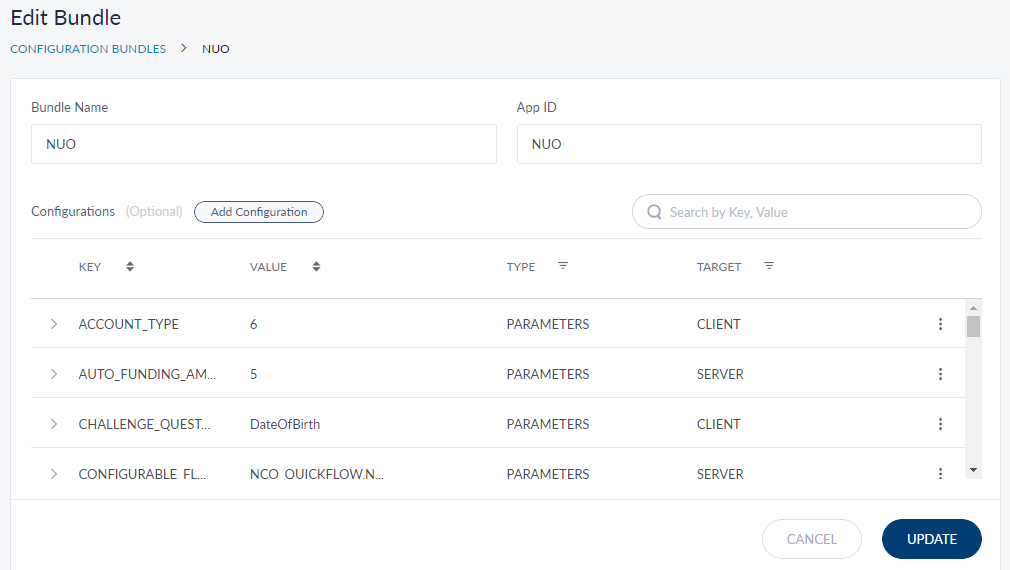
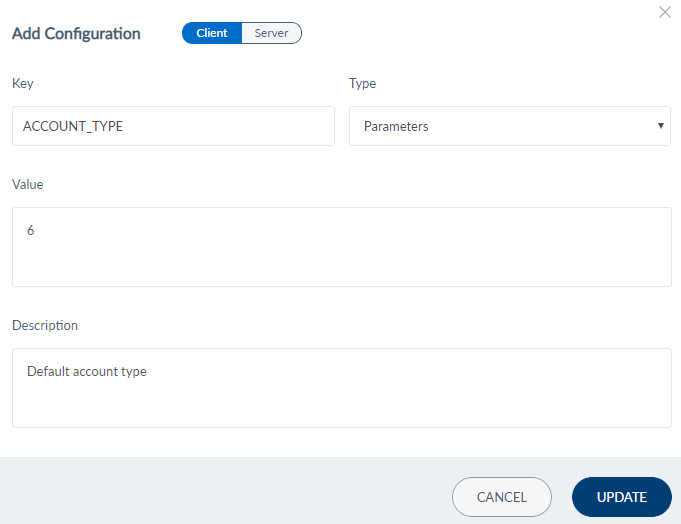
The edit screen is similar to the add screen with the provision to modify the details.
On the Edit Configuration Bundle screen, update the bundle or configurations as required.
- Bundle: Click Editto make the changes to the bundle as required, and update the details.
- Configurations: On the contextual menu, click Edit to make the changes to the configuration as required, and update the details. Click Delete to remove the configuration.
Audit Logs
The app captures and maintains a log of the following attributes whenever a user performs an add or edit activity. The logs are maintained in the backend and there is no user interface to view the logs.
| Attribute | Description |
|---|---|
| Module |
All the activities related to bundle and configurations are stored in |
| Event | The following activities are captured: edit configuration, edit bundle , add configuration, add bundle, delete configuration, and delete bundle. |
| Description | Event description |
| Date and Time | The date and time of the event. |
| Username | Username of the bank staff who performed the event. |
| User Role | Role of the bank staff who performed the event. |
| Status | Event success or failure. |
Add Bookmark
save your best linksView Bookmarks
Visit your best links BACK
BACK


Are you sure you want to log-off?